Create & send your first invoice
Your first invoice takes a little longer, you set up a client, learn the form. Every one after that is much faster. This guide walks you through the whole thing from blank screen to a sent, compliant invoice.
Open the invoice form
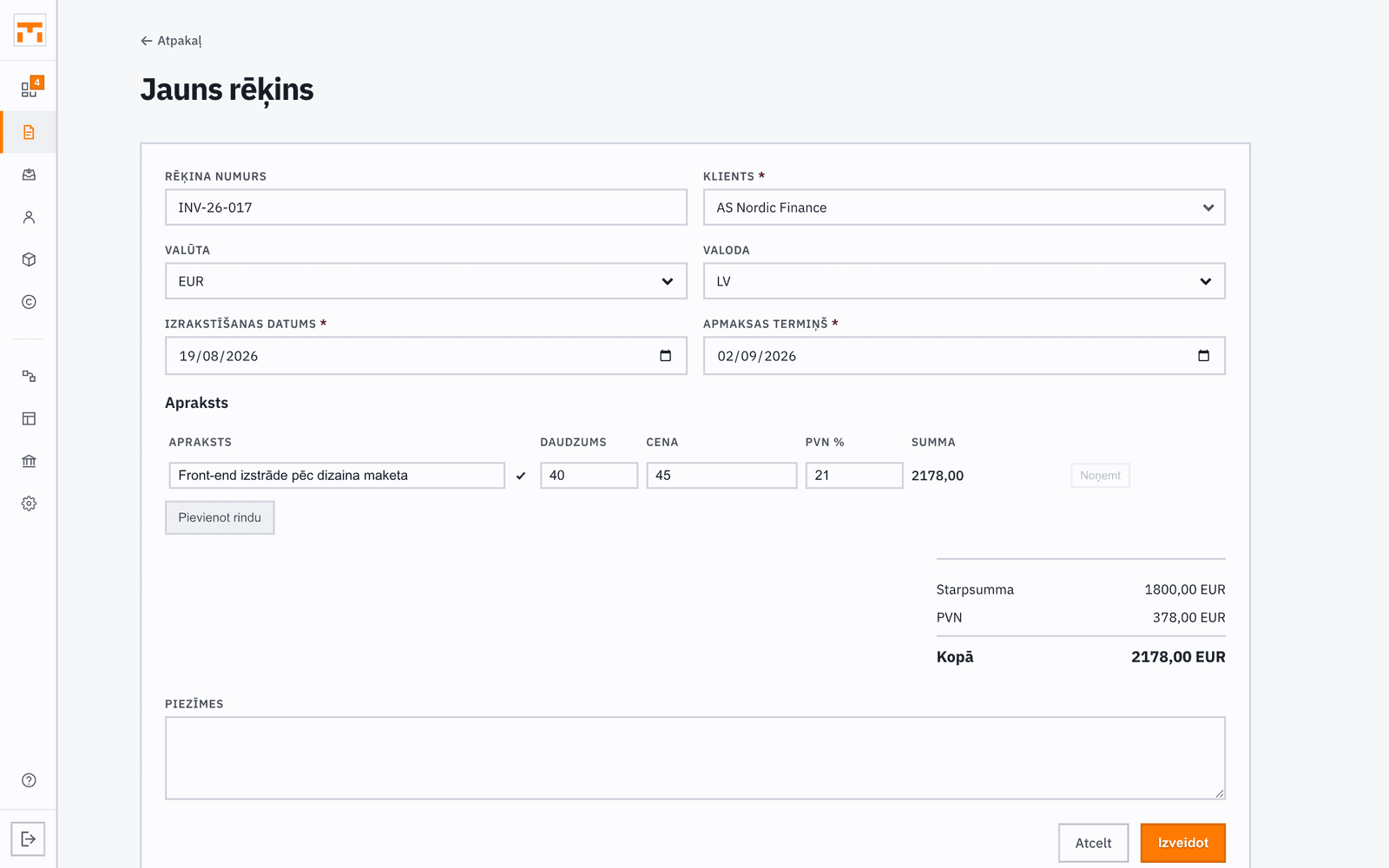
Find Invoices in the left sidebar and click New invoice. The form opens with today's date and a 30-day payment term, and shows which invoice number comes next. You can change these, but the defaults work for most situations.
Fakts assigns the number when you issue the invoice, not when you save the draft. If you delete a draft, no number is used up and the series keeps no gap.
Add a client and line items
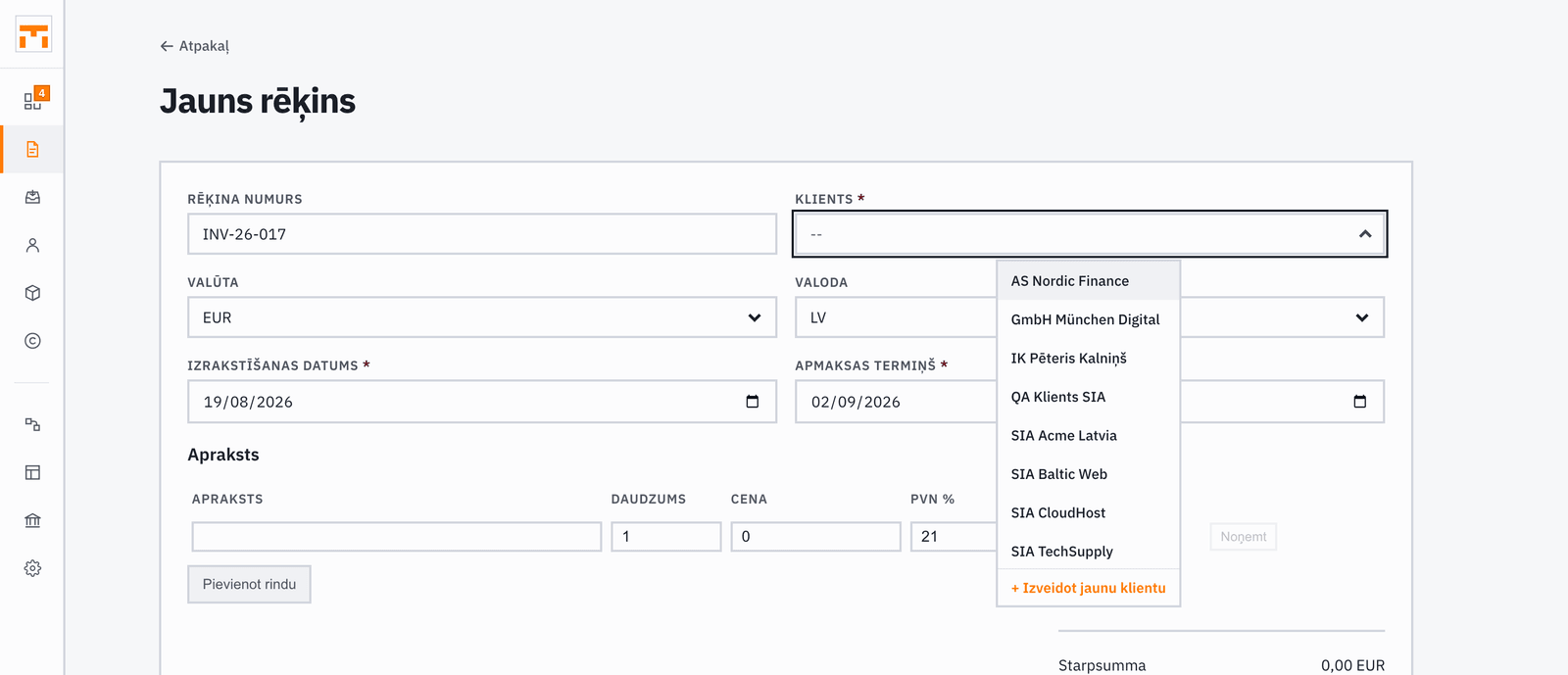
Start typing in the Client field. Fakts searches your contacts and can look up Latvian companies in the Enterprise Register if the client isn't in your book yet. Pick from the list or create a new client on the spot.
In the Line items section, add each service or product separately. Enter a description, quantity, unit price, and VAT rate. Totals are calculated automatically, Fakts re-runs all invoice maths on the server before saving, so rounding errors can't slip through.
If you bill for the same services regularly, search your Items library to pull in a saved item complete with its price and VAT rate.
Pick the VAT rate
Each line item can carry its own VAT rate. Latvia has four standard rates: 21 % (standard), 12 % (reduced), 5 % (reduced, books, press, media), and 0 % (exports and intra-EU supplies). For the full breakdown, see "VAT tiers & reverse charge".
Most service invoices use 21 %. If you're unsure, ask your accountant, Fakts doesn't decide the rate for you.
Save, issue, and track
When everything looks right, click Save draft. The invoice is saved as a Draft so you can review and edit it. When you're ready, click Issue & send. Fakts emails the invoice to your client with the PDF attached, and the Peppol XML e-invoice too if you choose. An issued invoice can no longer be edited: mistakes are corrected with a credit note.
To send it yourself, issue the invoice and download the PDF or copy the link to its invoice page.
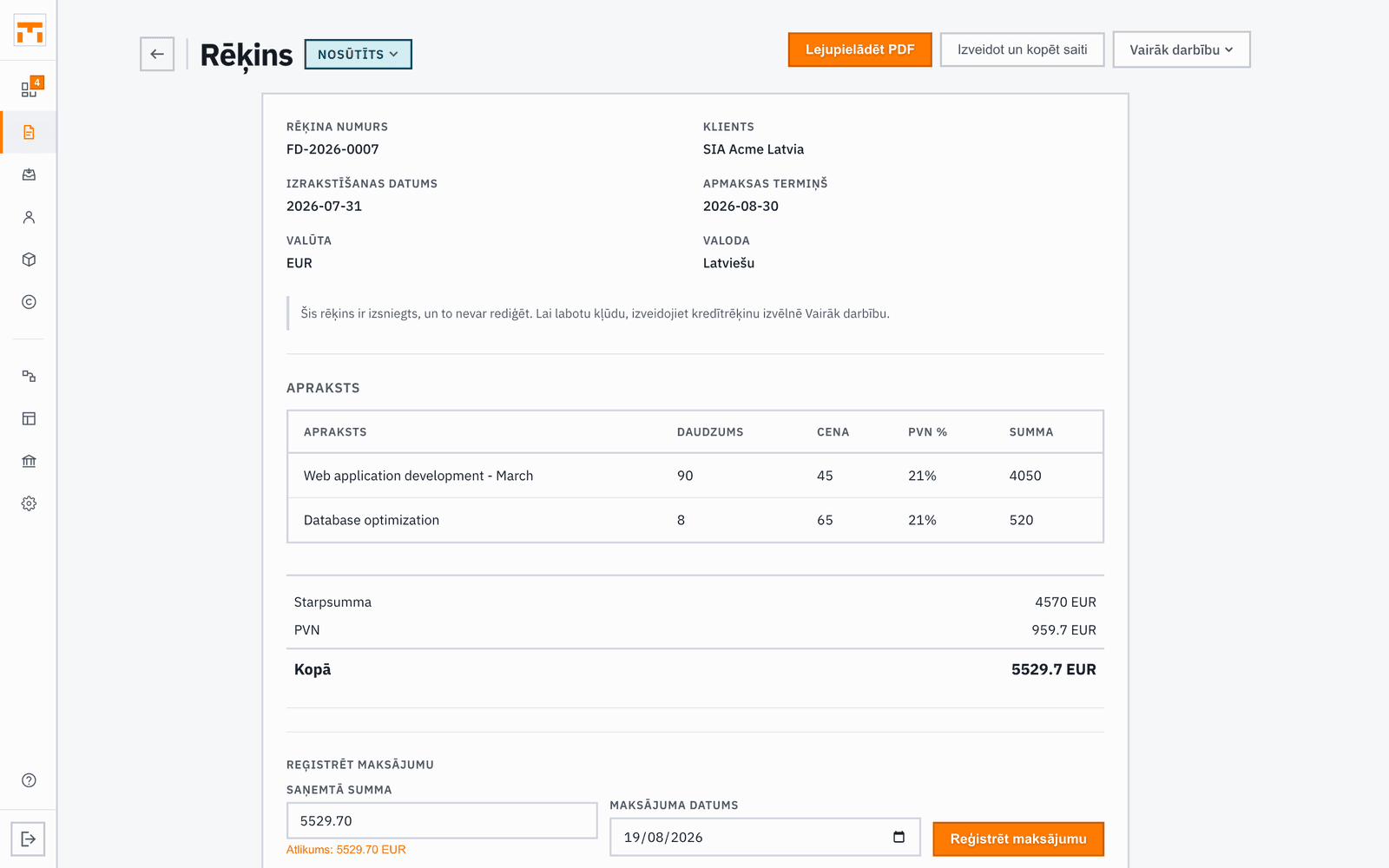
After issuing, the status moves to Sent. When your client pays, use Record payment: Fakts records the date and amount, part payments included. Once fully paid, the invoice drops off the overdue list.
The invoice list shows all your documents with status, due date, and total at a glance. Overdue invoices are highlighted automatically so nothing slips past you.